Tutorial 10 - Execute functions
This tutorial show, how to execute database function using KPoGre.
Open function Executor
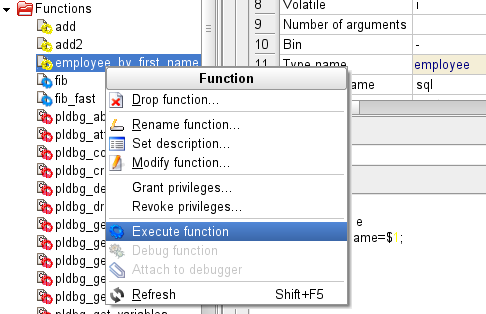
Select function you wish to execute in tree, make right mouse click to display menu and choose
 Execute function
KPoGre shows Executor with function arguments and result area. Also toolbar is displayed.
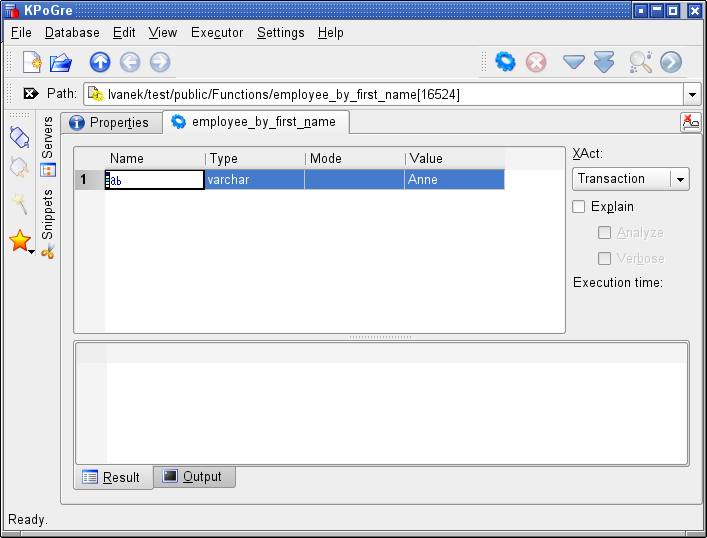
Function arguments
Enter arguments values to table. Convertion rules are the same as in Datatable.
Execute function
Choose
It is possible to terminate running function using
 Executor -> Stop
Options
XAct - transaction type
User can choose type of transaction for executing function:
- Transaction - Standard back-end transaction.
- Robust trans - Slightly slower, better-fortified version of transaction.
- Nontransaction - Statement will not run inside transaction.
Explaining and analyzing
There are checkboxes to prepend keywords EXPLAIN [ANALYZE] [VERBOSE] before SQL statement thar execute function.
See PostgreSQL
documentation for more informations about explaining and analyzing SQL.
Execution time
Also you may see information about last query execution time. Note, that this time is measured on client side, and it differ from time measured by EXPLAIN ANALYZE.
Looking at result
When query result is returned from server, it is displayied in result area. It may be text or table, depending from function.
When table result is larger than 500 rows, only 500 rows fetched initially to table.
User may fetch another bunch of rows using
 Executor -> Fetch next
 Executor -> Fetch all
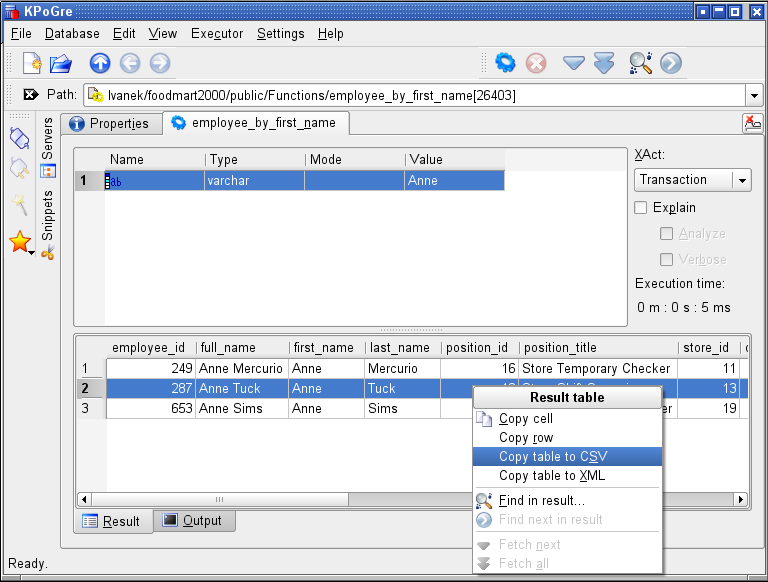
If you make mouse right-click over result table, menu containing some clipboard and search actions is displayed.
Content of result table may be saved to CSV file using File -> Export result.